
Trading on Rented Land: Why Windows is a Liability in 2026
In 2026, Microsoft Windows has become a mockery of what a privacy-focused individual expects from a computer. For anyone who values control over their system, the current state of Windows is simply unacceptable. It’s no longer just an operating system, it’s a platform pushing heavy telemetry, mandatory cloud logins, and cloud profiles that tie your local identity to a corporate server.
As a retail trader, you are operating in a mission-critical environment. In my experience, a system that can restart out of the blue for a “mandatory update” is a liability that can lead to significant financial loss. If a glitch occurs because your OS decided to prioritize its own background processes over your execution, that is money out of your pocket.
Predictability vs. Corporate Control
I decided to move to Linux because I wanted to end the “Operating System as a Service” model. While Linux isn’t without its own struggles, it offers something Windows can’t: Total Predictability.
- No Forced Updates: If you decide you never want to update your system because it’s stable and you are in the middle of a heavy trading month, that choice is entirely yours.
- Zero Hostage Situations: You will never be held hostage by a prompt requiring you to login over the internet just to access your own desktop.
- Lean Execution: There are no unnecessary services running in the background taking a cut of your CPU cycles or your privacy.
In my setup, the operating system is not a middleman; it is a tool that works for me, not for Microsoft. It’s about moving from “Rented Land” to a sovereign execution environment where you own every bit and have the sovereignty to configure and tune the system exactly as you see fit.
Important: This guide is for informational purposes only and is not financial or trading advice. Please read our full Terms of Service (including risk warnings and disclaimers) before proceeding: Terms of Service
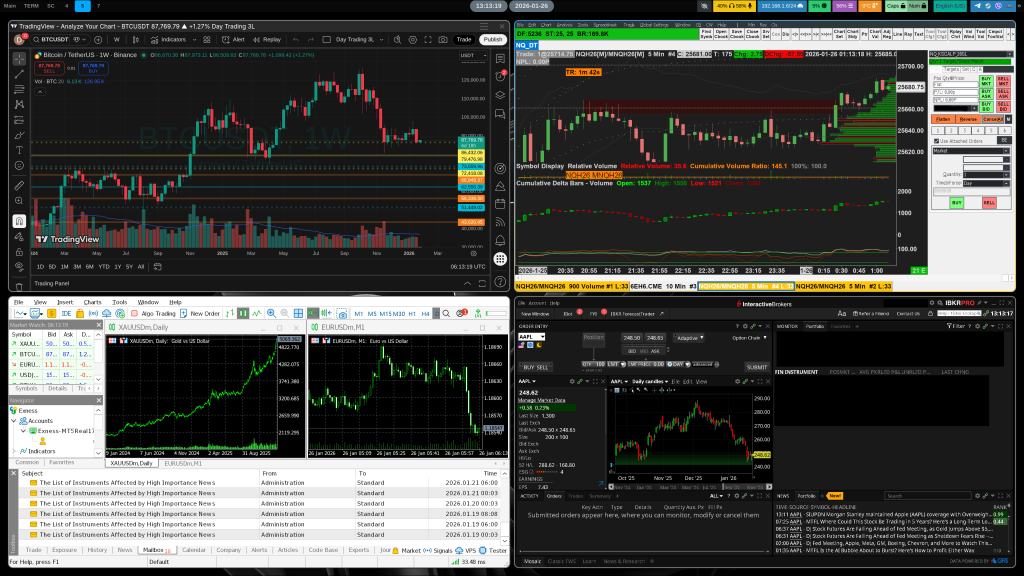
The Sovereign Trading Stack: Four Platforms for Charting and Execution
Trading on Linux is not a new experiment for me, it is the culmination of over 20 years working with Linux and Open Source, combined with 8 years of active trading. I have tried nearly every platform available on the market, and I have noticed a recurring pattern: most platforms relying on Microsoft-based frameworks are performance traps.
In my experience, if you try to keep these framework-dependent platforms open for more than a single day, they become completely unresponsive. Unless you are strictly looking at hourly or daily charts, they simply cannot handle the load. For high-intensity day trading, many of these platforms are pure garbage, regardless of their high price tags. They might look good in a screenshot, but when the tape starts moving and you need immediate execution, they fail.
After years of trial and error, I decided to narrow my execution environment down to four applications. These are not just “options” I found on a list, they are the tools I used across Windows, MacOS, and Linux. They are battletested and, most importantly, I use them extensively every day on my own machines. My opinion here comes strictly from my own experience.
- Sierra Chart : This is my primary tool for US Futures. It is a high-performance machine built for speed. While others struggle with bloat, Sierra Chart remains free of Microsoft frameworks. Its performance is unmatched, its features are highly advanced, and the developers are supportive of the platform running under Linux via WINE.
- MetaTrader 5: While my focus has shifted toward futures, I spent a few years using MT4 and MT5 for Forex. It remains a core platform that even if its coded and compiled for windows has rich functionality and decent performance, running with near-native efficiency through the compatibility layer.
- TradingView: I use this for my chart analysis and crypto trading. By running it as a Brave-based Web App, I ensure it gets full GPU acceleration without the overhead of a standard electron desktop install.
- Interactive Brokers TWS: For my stock portfolios and options, TWS is the rock-solid Java-based platform. It provides the global market access I need with the stability that a retail trader requires.
WINE: The Compatibility Layer

I have mentioned Sierra Chart and MetaTrader before. Both platforms are currently compiled for and provide official support only for Windows. To run them under Linux, we use WINE. It is important to understand exactly what this is, as many people confuse it with other, slower technologies.
Translation, Not Emulation
In contrast with emulators or virtual machines, WINE is a compatibility layer. I have noticed that many retail traders avoid Linux because they fear a “performance penalty,” but WINE doesn’t work that way. It takes the system calls from the Windows API and translates them to the equivalent POSIX calls found in Linux in real-time.
The distinction is critical because it means we gain raw performance and near-zero latency. It is not a joke that modern gaming on Linux -which includes running heavy AAA titles that do far more than just show a chart on a screen- relies essentially on WINE. If the layer can handle high-fidelity physics and graphics in real-time, it can certainly handle your order flow and price data.
The “Lone Stack” Choice: CrossOver
On top of the raw WINE engine, I am using CrossOver from CodeWeavers. I’ve found that for a mission-critical retail setup, it is worth the investment. It is essentially WINE bundled in a refined way with several extra fixes and a clean GUI for managing “bottles” (isolated environments for each app).
No need to try different WINE versions (stable, staging, development), the developers of CrossOver take this burden away. They also contribute heavily back to the open-source WINE project and provide actual support. In my experience, having that extra layer of stability ensures that when a platform like Sierra Chart updates, my environment stays standing.
Core Infrastructure. Choosing the Sovereign OS
In my experience, if your operating system is your execution environment, it needs to be as “quiet” as possible. Most of the modern Linux distributions have become too heavy, mimicking the very bloat we are trying to escape. For a retail trader, every unnecessary background process is a potential point of failure.
I have 20+ years in tech and 8 years in the markets, and that combination has led me to a specific, opinionated and hardened setup that prioritizes simplicity and predictability over “features.”
- Artix Linux (Systemd-free): I chose Artix specifically because it removes
systemd. For retail trading, using an independent and simpler init system, like OpenRC or Runit, means faster boot and cleaner management of your system. If you want to know more check nosystemd.org. Artix is an Arch-based, rolling-release distribution, so there is no need to ever perform a version upgrade and you retain access to the extensive Arch repositories. - Hyprland (The Wayland Compositor): While my tutorial uses the MATE Desktop Environment for ease of entry, my personal daily driver is Hyprland. It is a dynamic tiling Wayland compositor. For me, it is a great choice if your workflow benefits from a tiling window manager. You can keep your charts tight by forcing them into exact, repeatable positions so your eyes don’t have to hunt for the price.
Why I am not picking a mainstream Linux distribution
Despite privacy concerns and my ideological opposition to them, I decided to avoid “standard” distributions like Ubuntu or Fedora. I have noticed that those systems are built for general consumers, meaning they come with dozens of services you will never use but that will still take a cut of your CPU cycles.
In my setup, if I don’t need a service, it doesn’t exist. This results in a lean system that stays responsive even when you have dozens of charts and the DOMs open. We aren’t just ricing a desktop, we are building a mission-critical tool where you are the operator, not just a passenger.
Installing Artix Linux & Provisioning the Environment
The Source: Downloading the ISO Image
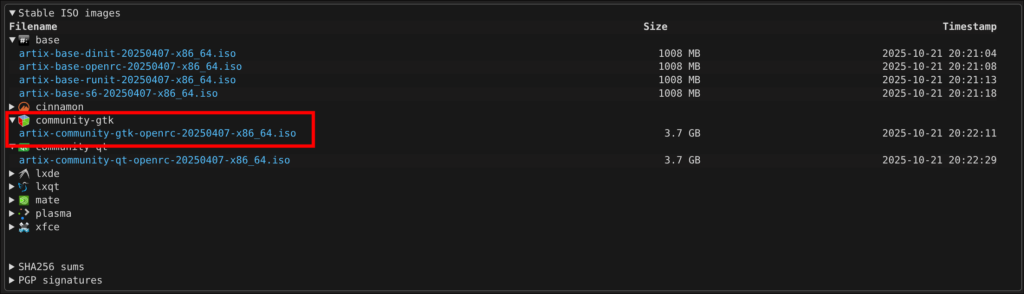
I always get my images directly from the official source. You can head to https://artixlinux.org/download.php and download the artix-community-gtk-openrc ISO via HTTP or Torrent.
- My Choice: I recommend the artix-community-gtk-openrc ISO.
- The Logic: This specific version comes with a GUI and installs the MATE and XFCE Desktop Environment by default. This is the easiest way for anyone to start exploring this distribution without getting lost in configuration files and the command line immediately.
The Installation Process
Once you have flashed the ISO to a USB stick and booted from it, you will land in a live GUI environment. From here, the Artix install is almost self-guiding.
Ease of Use: This specific installation method allows for no complex package selection; it simply installs everything necessary for a functional system along with the MATE desktop that we will use.
There are only few steps needed for the installation to be completed on a new disk.
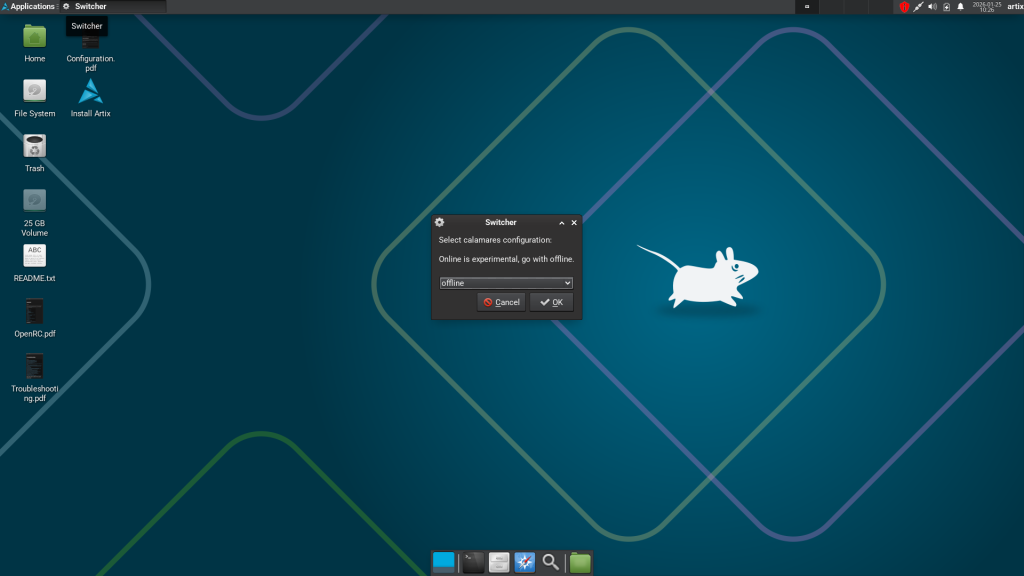
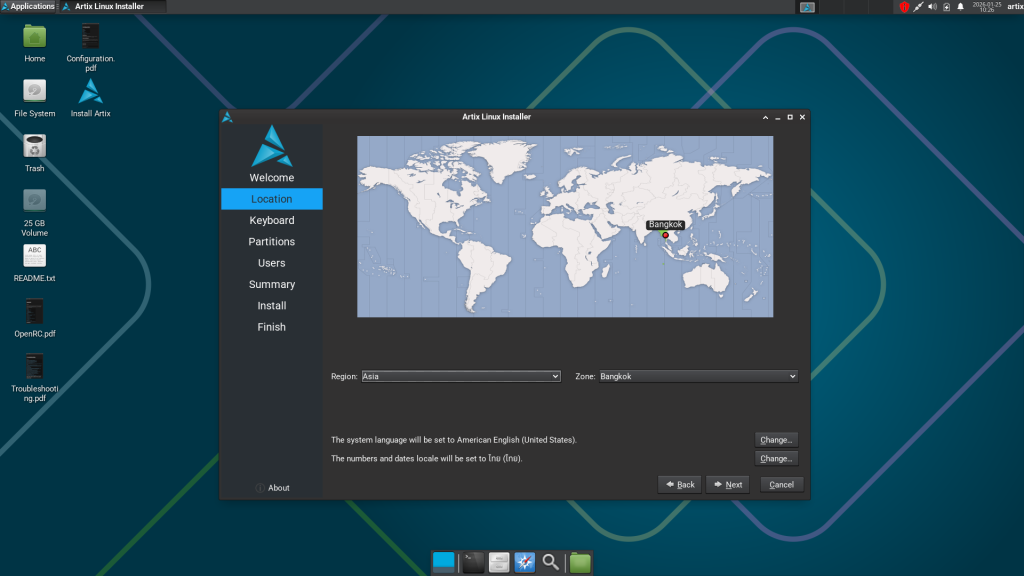
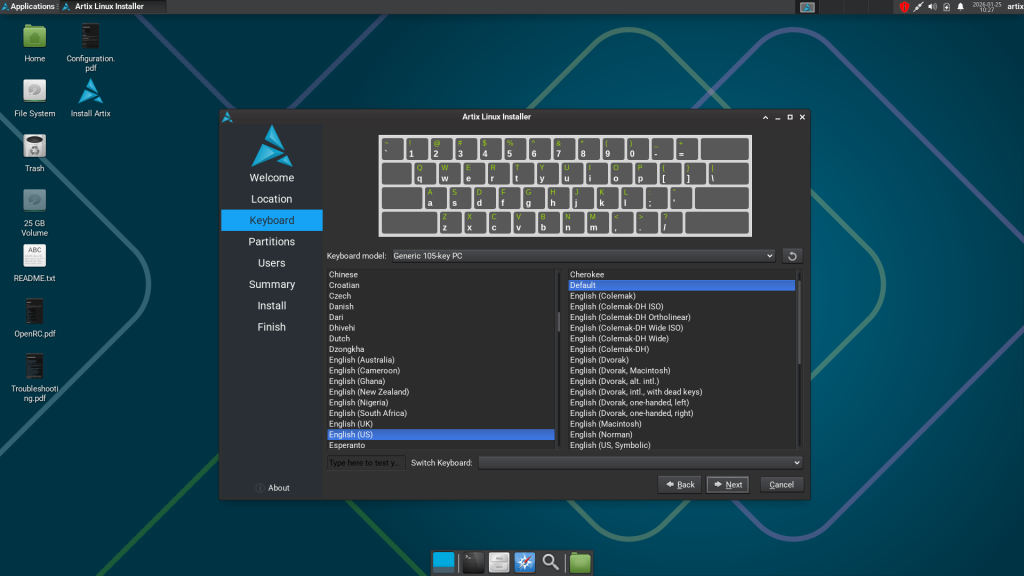
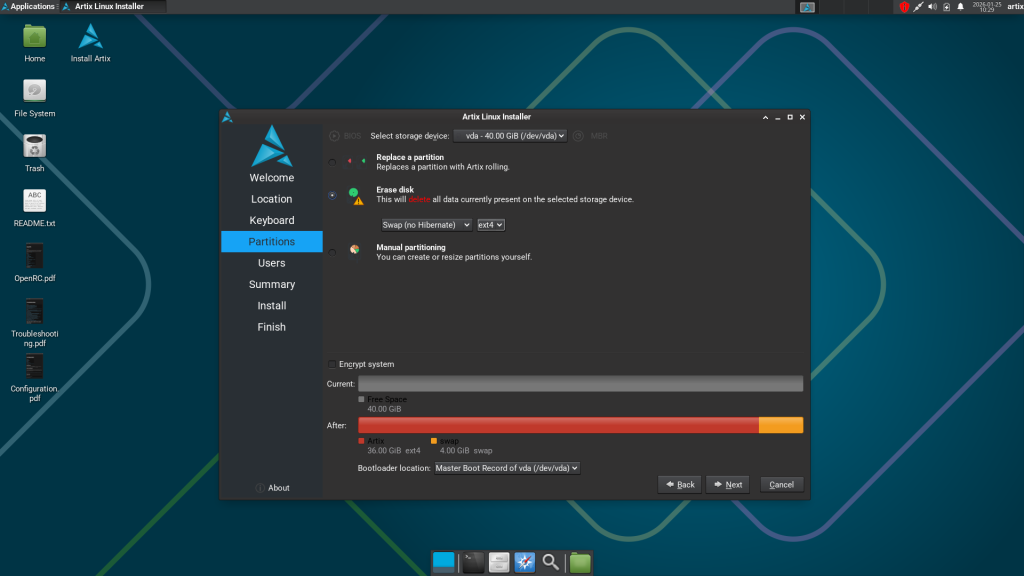
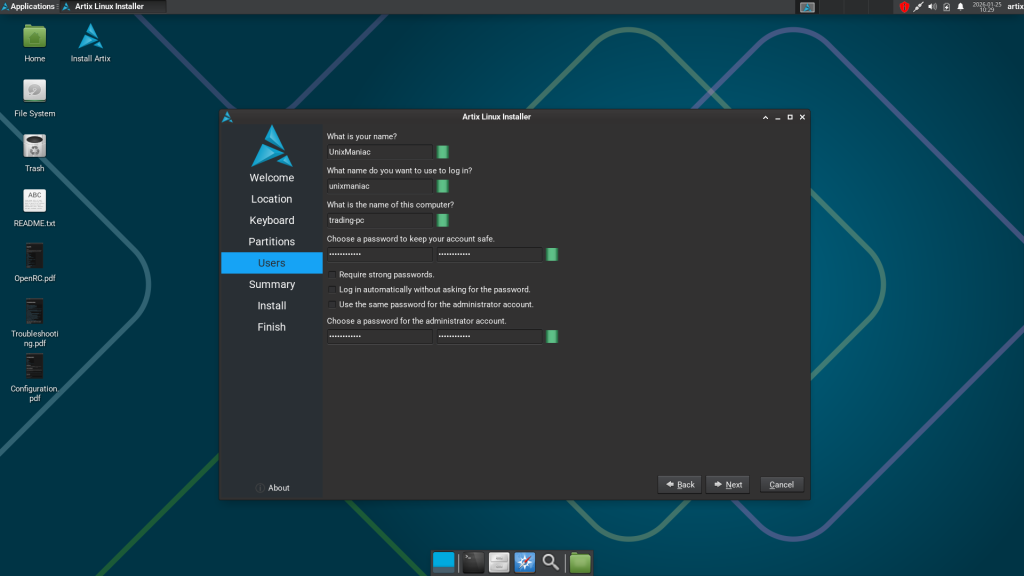
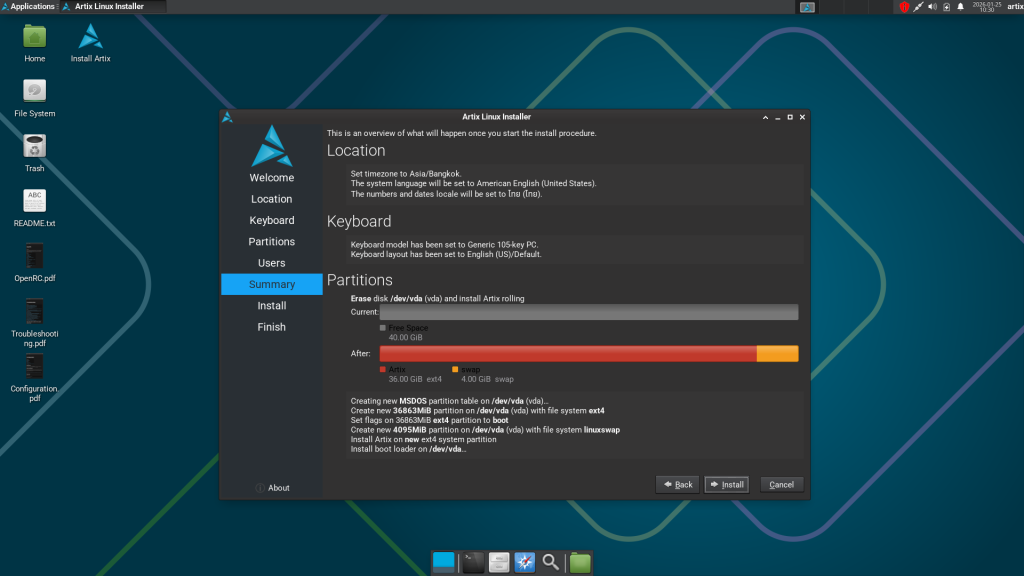
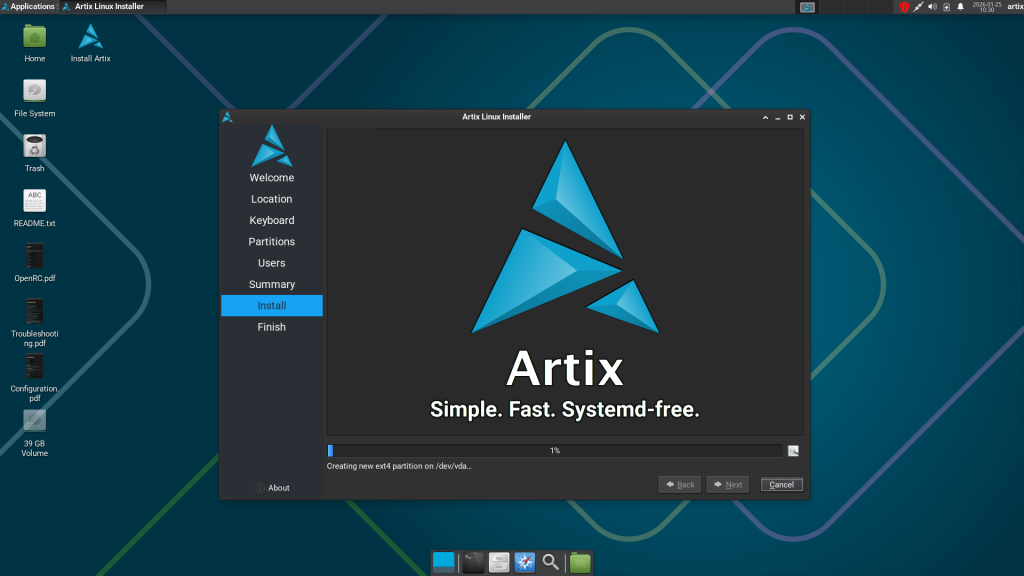
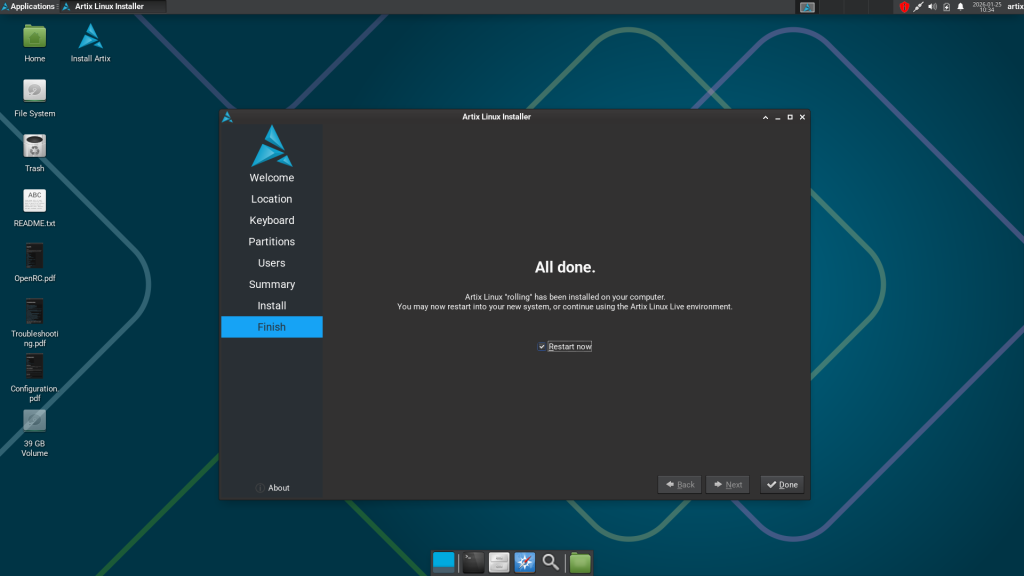
After the installation completes, the system will prompt you to restart. When you boot back in, you are no longer building on “rented land.” You have a clean, stable foundation ready for your trading stack.
Updating Your System
Any Arch-based distribution including Artix comes with the pacman package manager. The first step to take is to run a full system update.
Mirror Optimization
A good rule of thumb is to first select the fastest mirrors available in your specific location. You can run the following command to test and rank the mirrors:
rankmirrors -v -n 5 /etc/pacman.d/mirrorlistThis command will test all mirrors found in the /etc/pacman.d/mirrorlist file and print the five fastest ones. You can place these at the top of that same file and save it, your download speeds will improve drastically.
The Full System Sync
Once your mirrors are optimized, run the following command to perform the full system update:
pacman -SyuSince this is a rolling-release system, the kernel will likely be updated during the first run. Check the output; if a kernel update occurs, reboot to ensure you are running on the latest, most secure foundation.
The Reality Check
I want to show you the truth: working with Linux is not always “super happy all the way” as some portray it. The date of this writing is 24/01/2026. On a fresh installation I just performed, pacman -Syu failed with the following error:
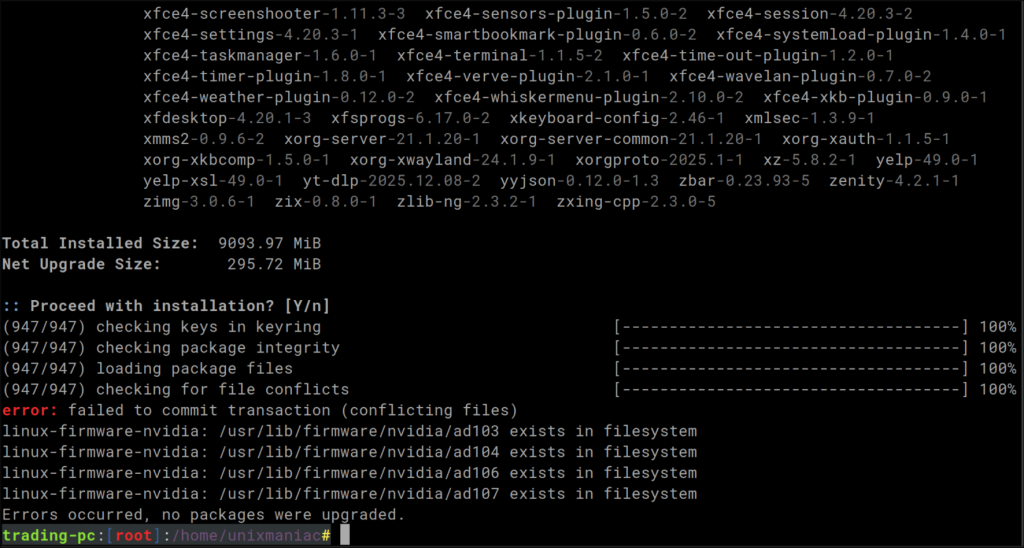
Arch-based distributions occasionally hit these errors when a local file exists where the package manager expects to install a new one.
- The Sovereign Move: In my experience, there is no need to be scared. Read the errors carefully.
- The Alternative: You can harness the modern power of AI. Asking Gemini or ChatGPT to analyze the error and suggest a fix is a great way to learn and experiment. This is a powerful way to grow your knowledge and understanding.
Personally, if I see a file creating a conflict like this old Nvidia driver firmware file I simply delete it manually. I know the system is going to replace it anyway. You are the operator; you don’t need a wizard to do this for you.
Installing yay (AUR Helper)
To access the tools we need, we must tap into the Arch User Repository (AUR). This is a community-driven repository containing package build scripts for software not found in the official Artix or Arch repos.
We are going to use a helper called yay. It is an essential utility that automates the process of searching, downloading, and building these community packages. While you can do this also manually, yay is the superior choice for managing everything from a single point.
First, switch to a folder where you want to download the source code and clone it from git using the following command:
git clone https://aur.archlinux.org/yay.gitOnce the repository is cloned, navigate into the directory and execute the build command:
cd yay && makepkg -siYou are now no longer restricted to what a distribution’s maintainers decide to include; you have the entire Arch community’s library at your fingertips.
Installing the Browser: Brave
The first major application we need to install is the Brave Browser. I decided on Brave because it is my favorite for performance and privacy, and it serves as the foundation for TradingView later. It handles GPU acceleration significantly better than standard “Electron” desktop wrappers, which is vital for keeping your charts smooth.
We will install it by using AUR. Just execute:
yay -S brave-binInstalling the Bridge: CrossOver
Finally, we install CrossOver. As I mentioned before, this is the commercial, version of WINE that provides a clean GUI and managed “bottles” for our Windows-native tools.
CrossOver comes with a 14-days trial for you to try and decide if you want to buy.
CrossOver provides several ways to install, but its also available on Arch’s AUR. The only thing needed is to run the following command to install it:
yay -S crossoverInstalling The Trading Platforms
With the foundation of Artix and CrossOver ready, we move to the actual execution tools. this is where the “Sovereign Stack” proves its worth.
For Sierra Chart and MetaTrader, while these platforms were built for Windows, they can run with near-native performance when handled correctly.
For TradingView And Interactive Brokers TWS, these are apps running natively on Linux, the first via Brave Browser and the latter as a Java application. They give rock solid stability and maximum performance.
Sierra Chart (via CrossOver)
Inside the CrossOver GUI, we simply search for “Sierra Chart”. CrossOver automatically handles the download, creates a Windows 7 64-bit bottle, and installs the necessary Windows dependencies.
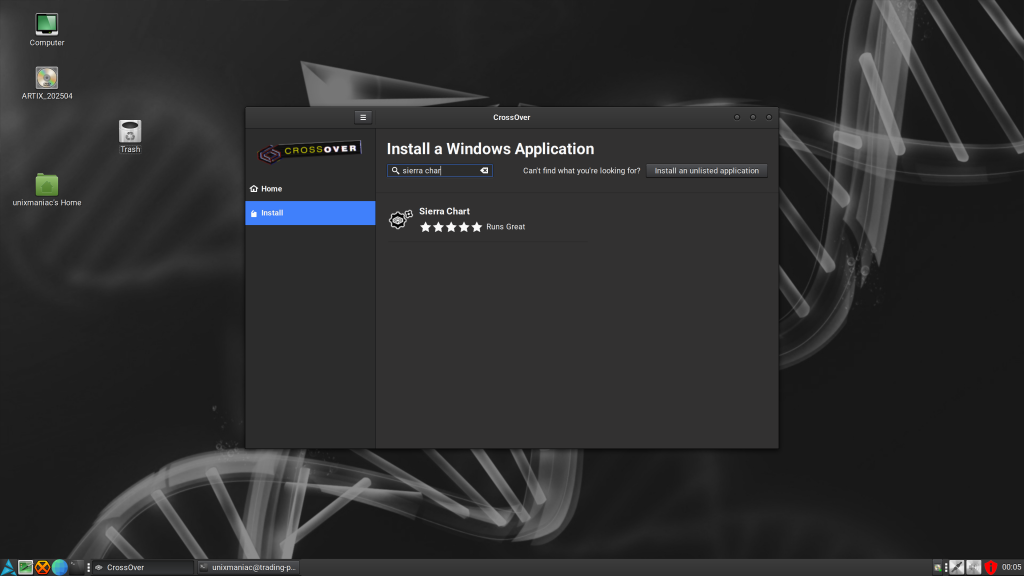
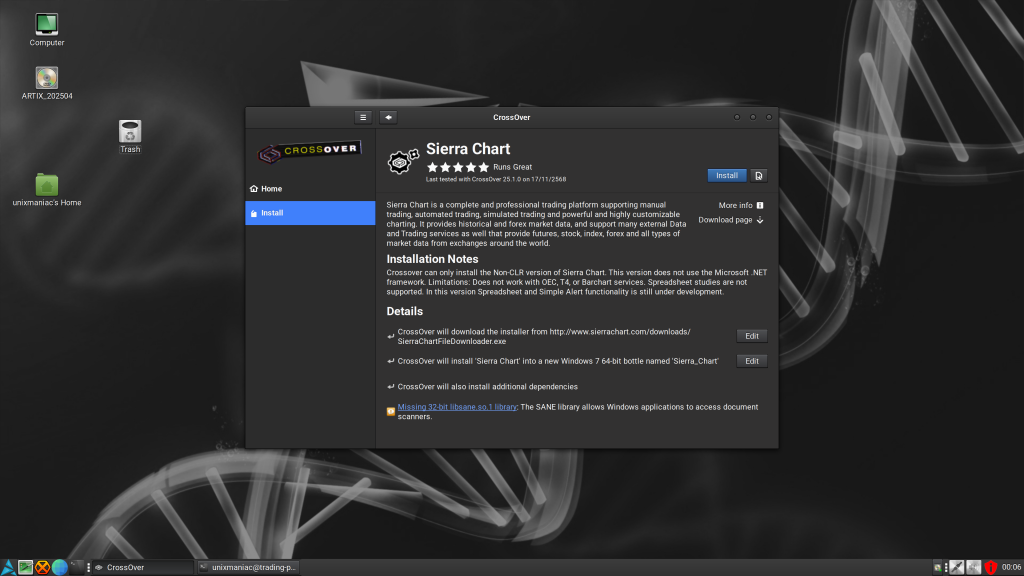
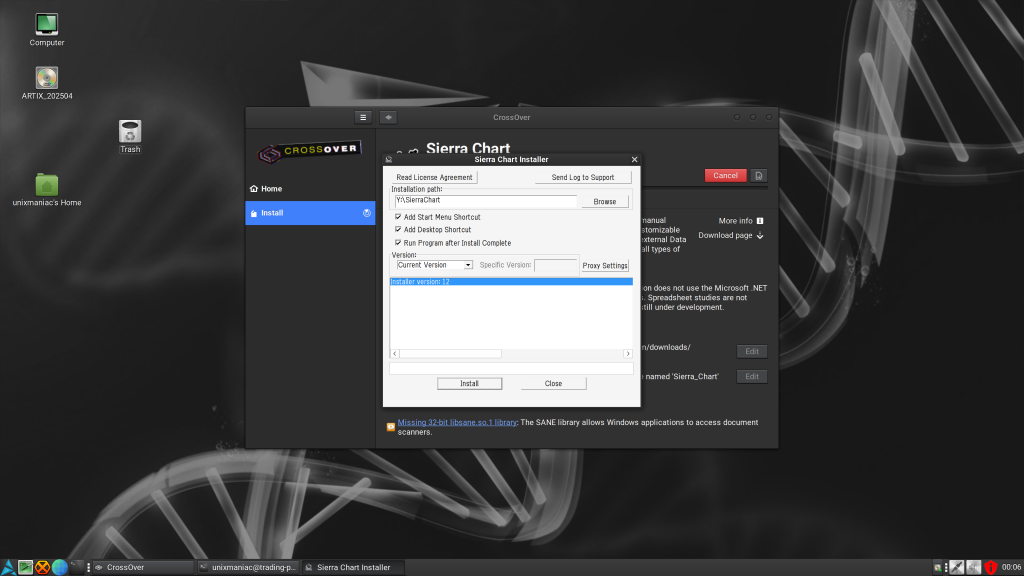
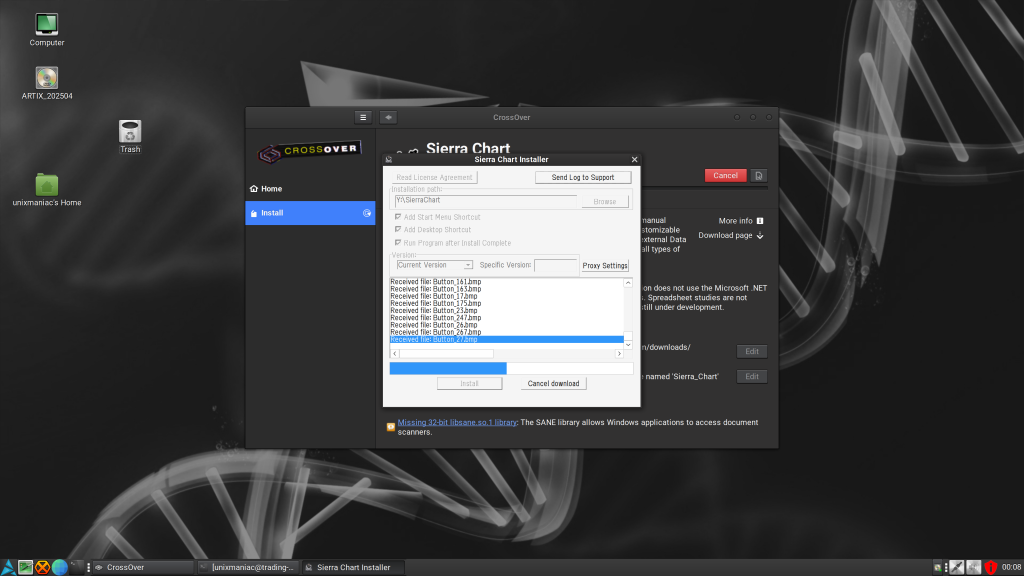
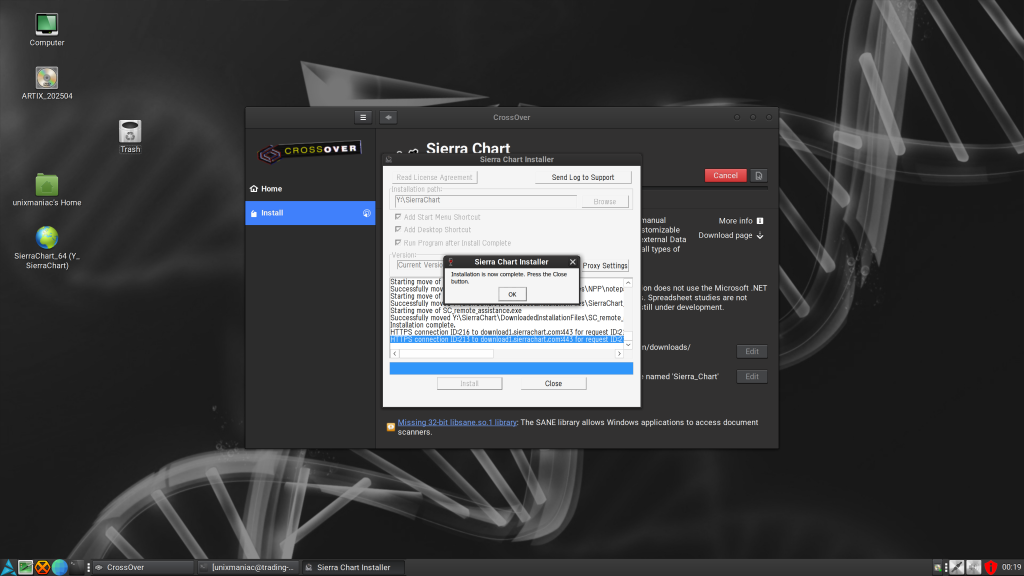
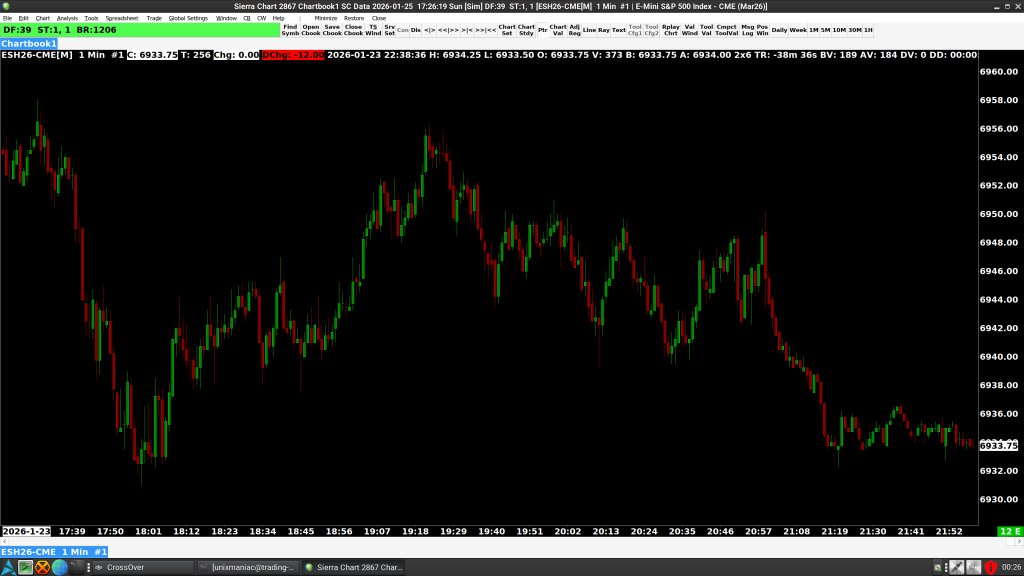
The Critical Linux Tweak: Once installed, there is one mandatory step to ensure network stability and performance. As the developers are actually quite supportive of Linux users they try to have built-in specific improvements for us.
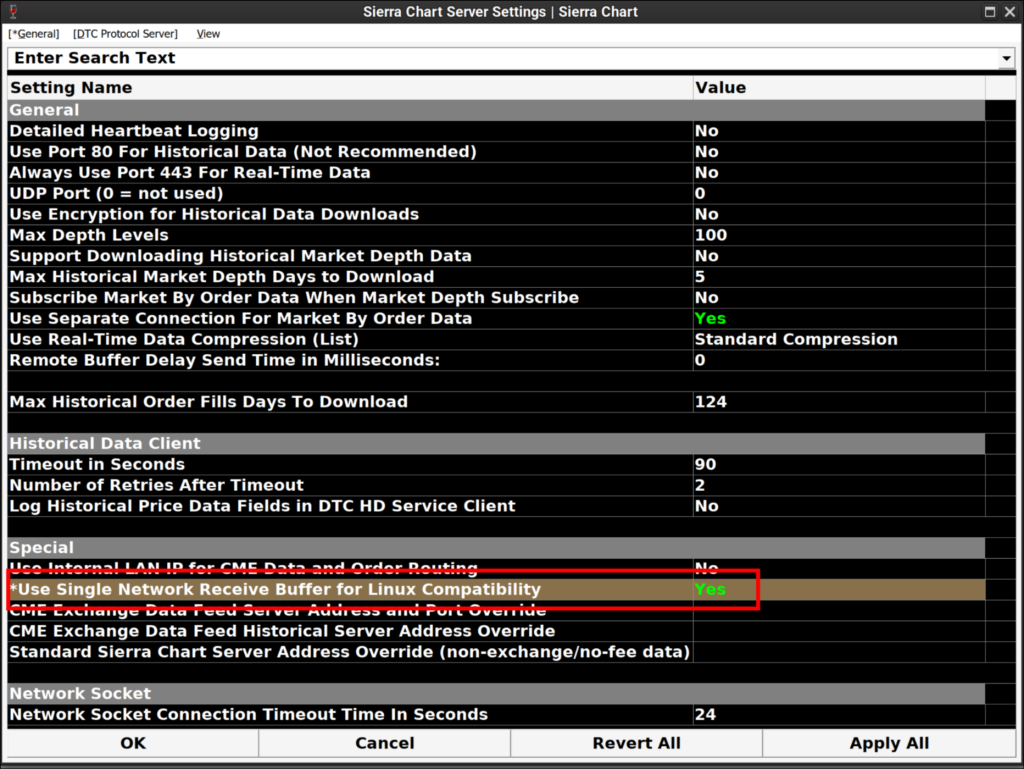
- The Fix: Navigate to
Global Settings >> Sierra Chart Server Settings. - The Setting: Set “Use Single Network Receive Buffer for Linux Compatibility” to Yes.
- The Result: This provides a massive boost to network performance and prevents data lag during high-volatility sessions.
MetaTrader 5 (via CrossOver)
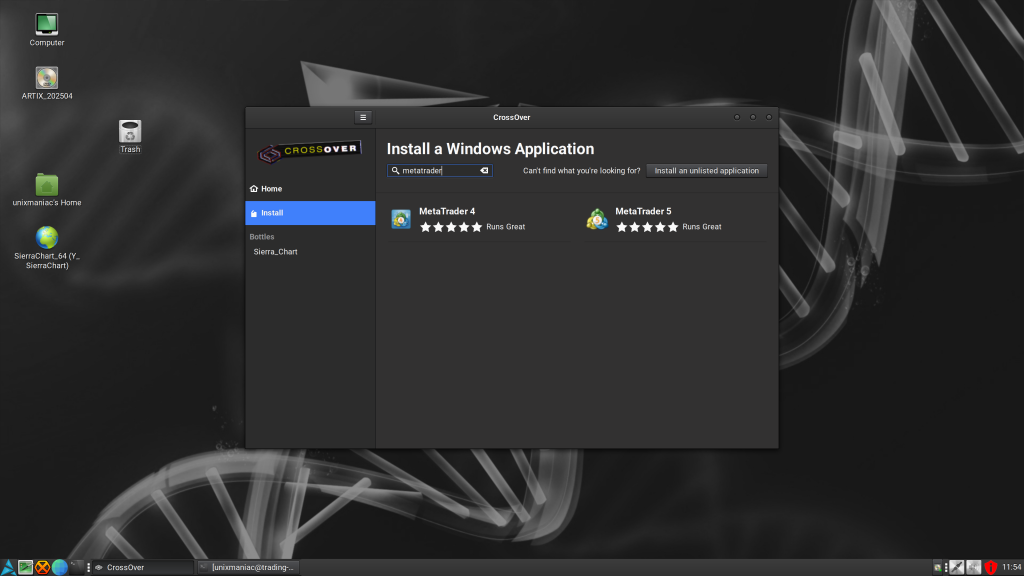
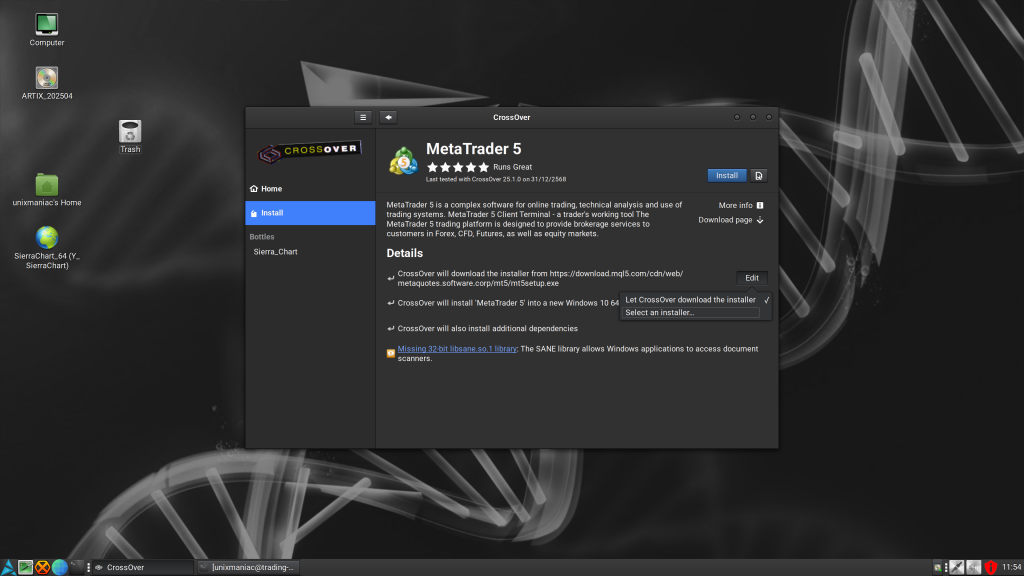
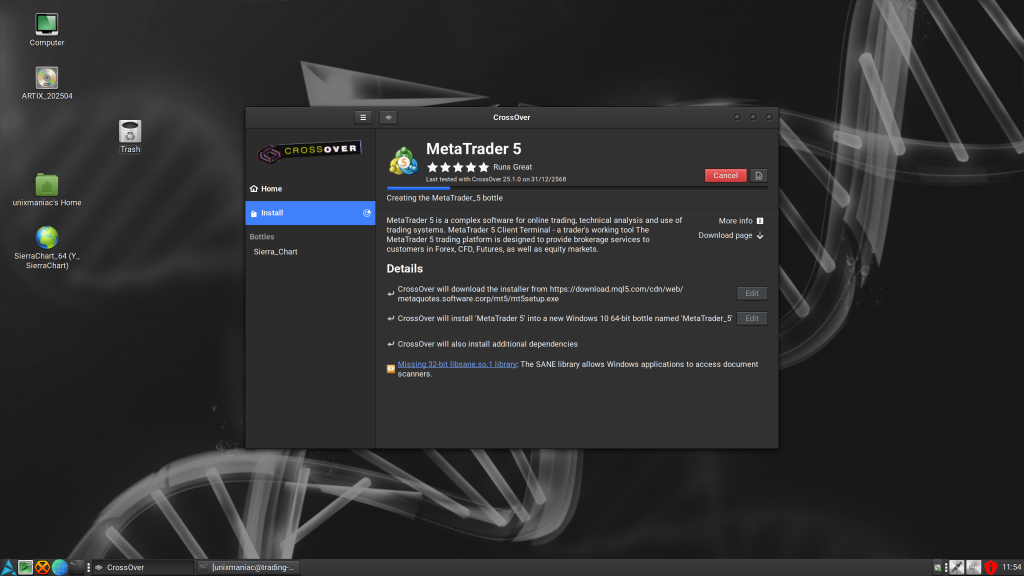
For MetaTrader, we will let CrossOver create a Windows 10 64-bit bottle and install it. We can use use the generic installer or specify one from any broker, it runs with near-native efficiency through this compatibility layer.
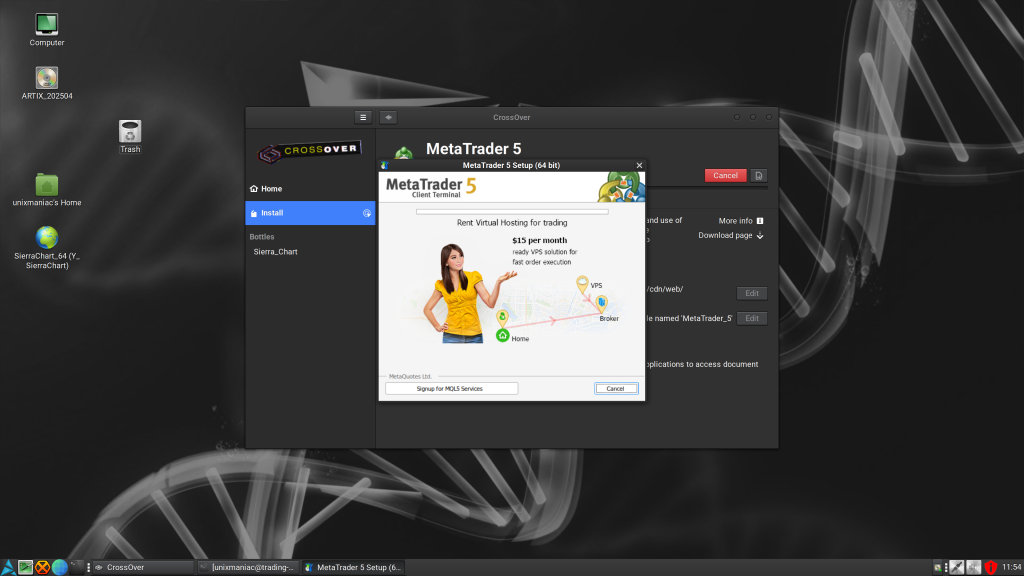
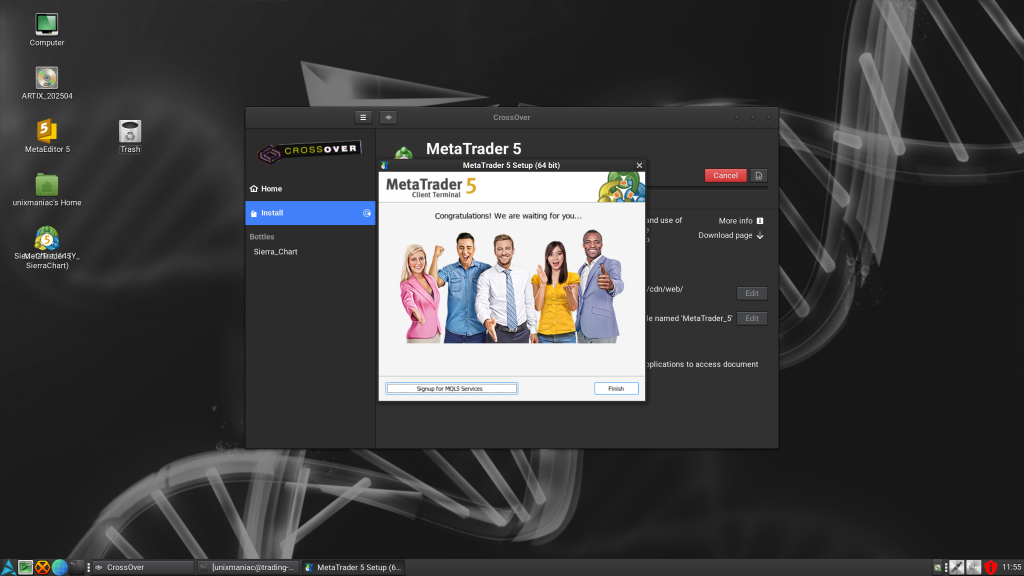
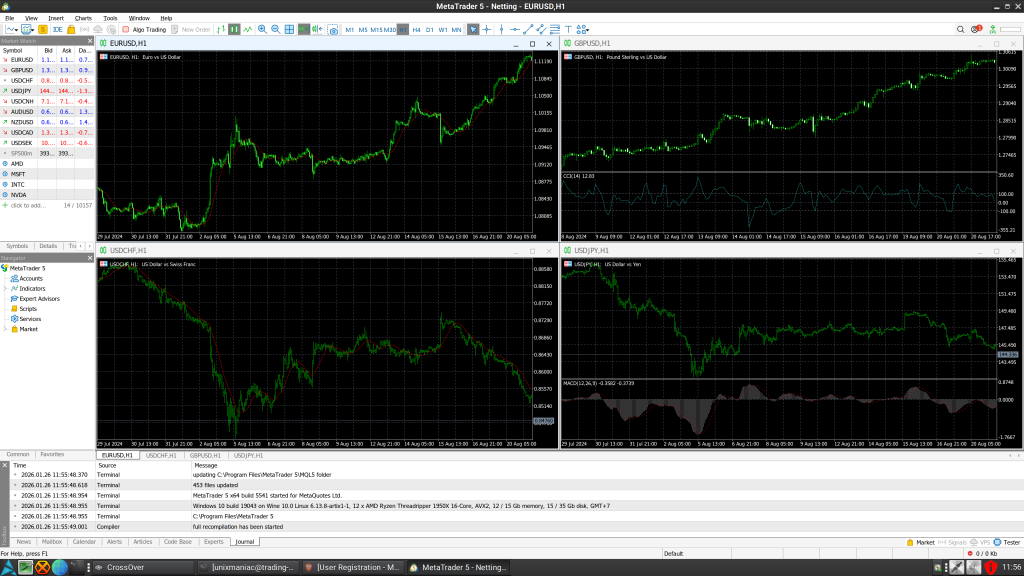
TradingView as a Standalone Web App
While TradingView is also offered as desktop app, it is Electron-based and in my experience it can be a performance trap.
We are going to use the Brave browser to run TradingView as a Standalone Web App. Brave provides 100% GPU acceleration, per my experience I noticed that chart movements are significantly smoother than a standard desktop install and resource usage is more balanced.
How to Install
- In Brave, open the TradingView website and login.
- Open the main Brave menu, select “Save and Share”, and click “Install page as app”.
- When the prompt appears, we specify the name for the application and click “Install”.
- A desktop item will be created that you can use it to open an instance of TradingView.
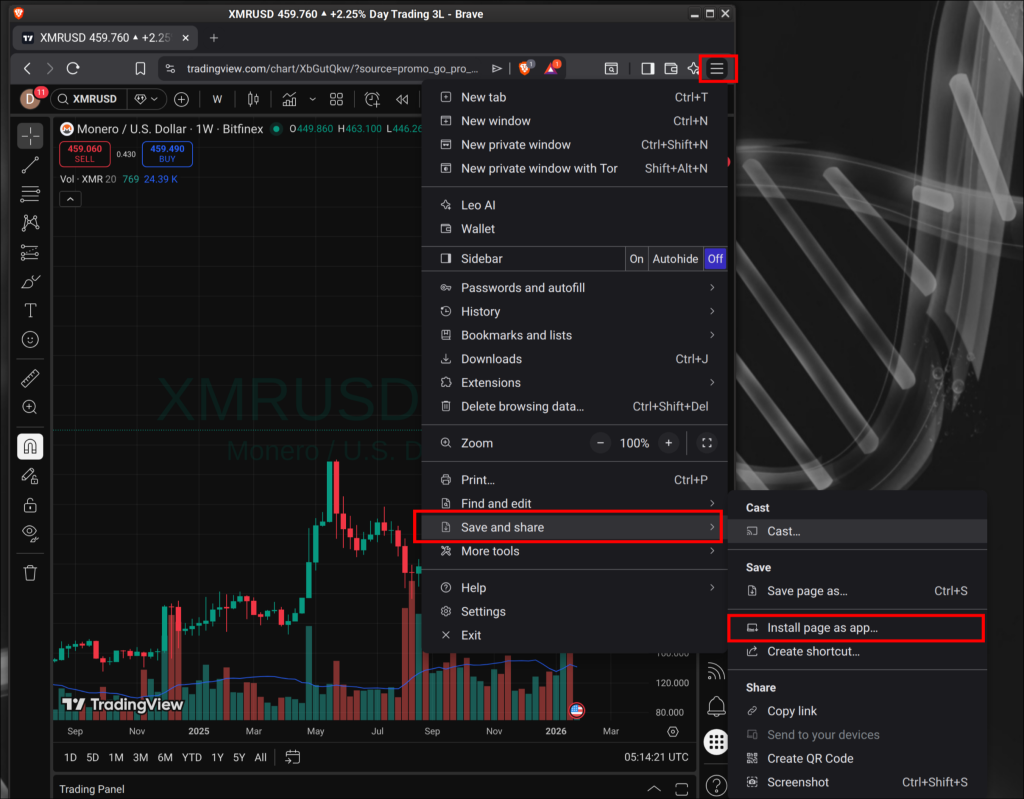
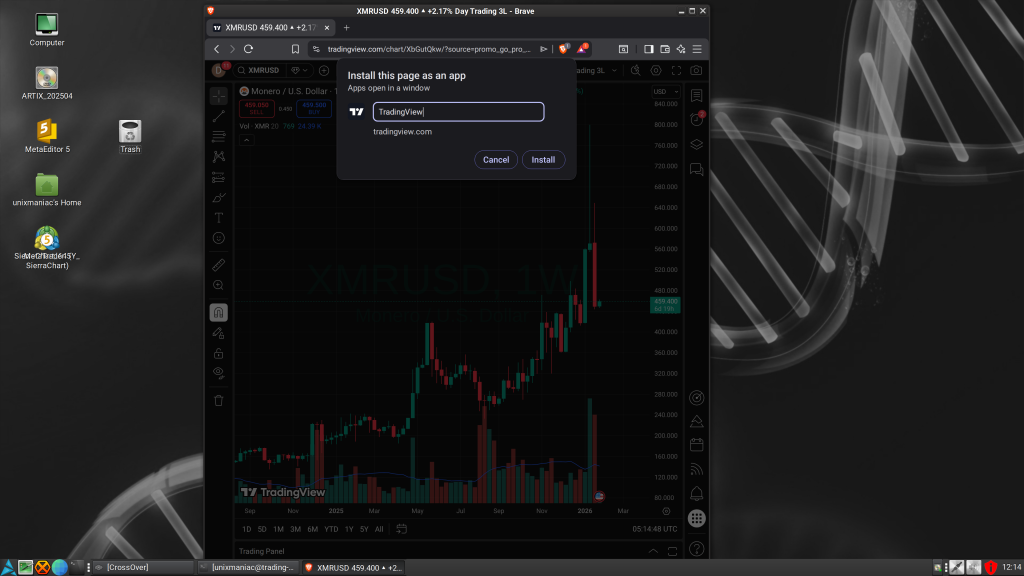
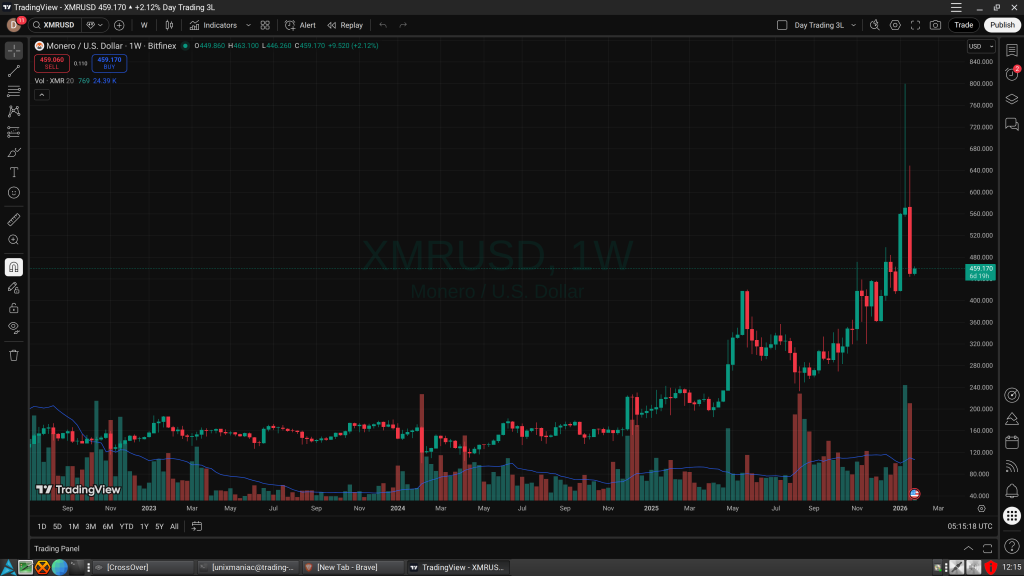
Multi-Monitor TradingView Tip: I’ve noticed some argue for the native app due to multi-monitor support, but in my experience, you can simply open another instance of the TradingView and move it to your second monitor. It works flawlessly.
Interactive Brokers TWS
The final piece of the stack is IBKR Trader Workstation (TWS), which can be used for stocks and options execution. This is a rock-solid Java application that runs natively on Linux.
The Installation: We download the shell script directly from the IBKR website (currently at: https://www.interactivebrokers.com/en/trading/download-tws.php).
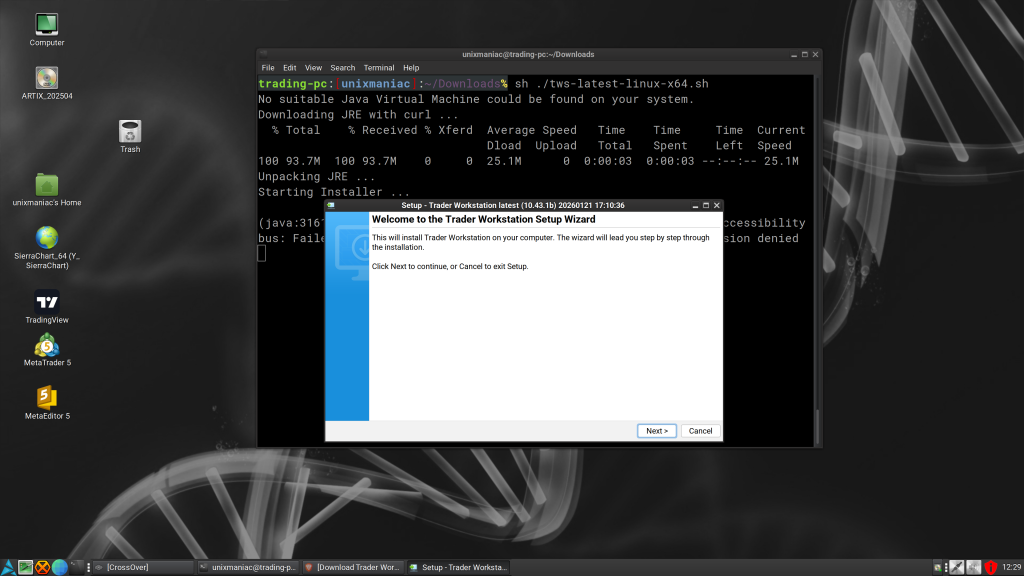
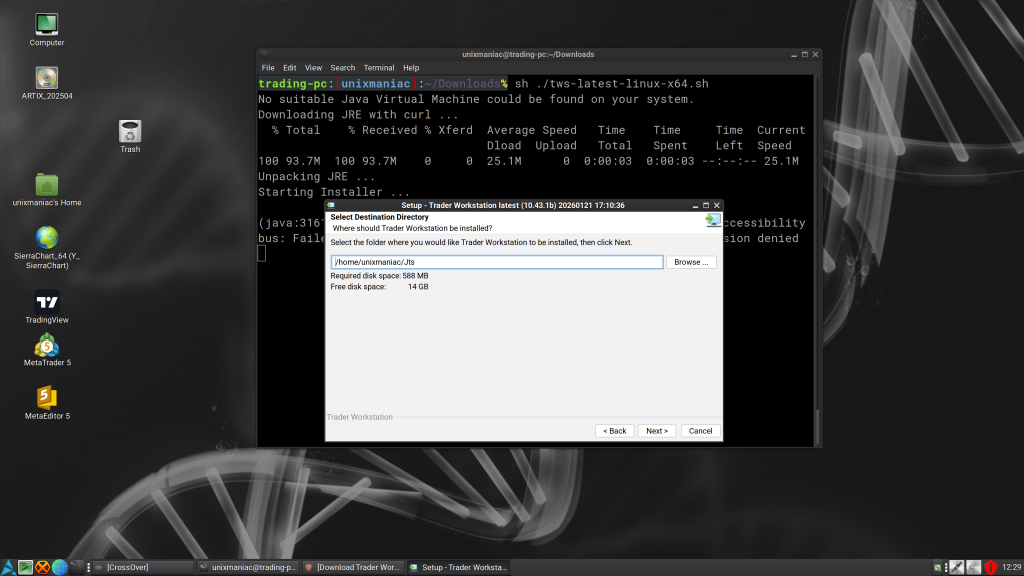
Root privileges are not even required; we simply run the script, and it automatically downloads the correct Java version and installs the files to the user account.
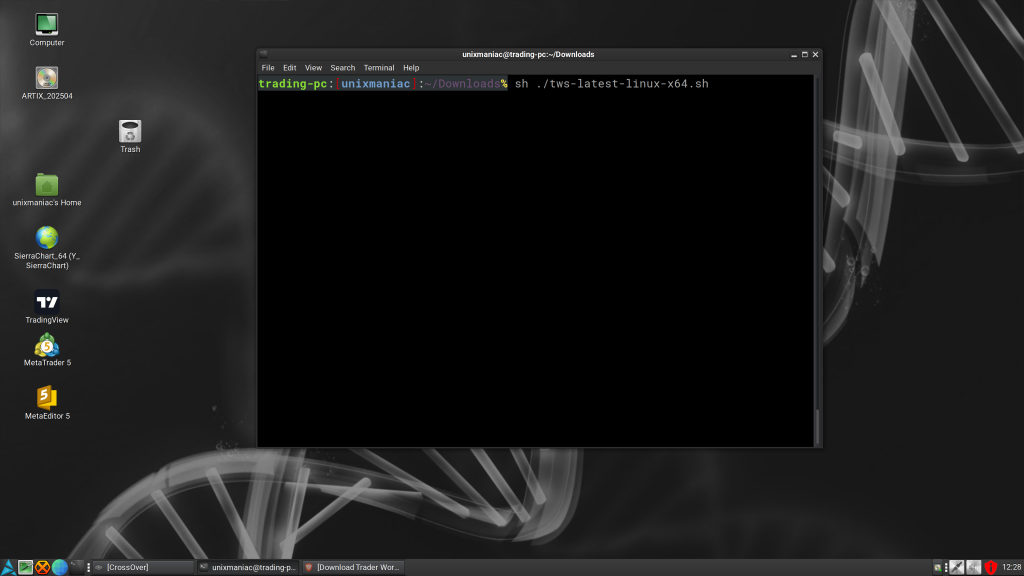
Enter the directory you downloaded it into and run:
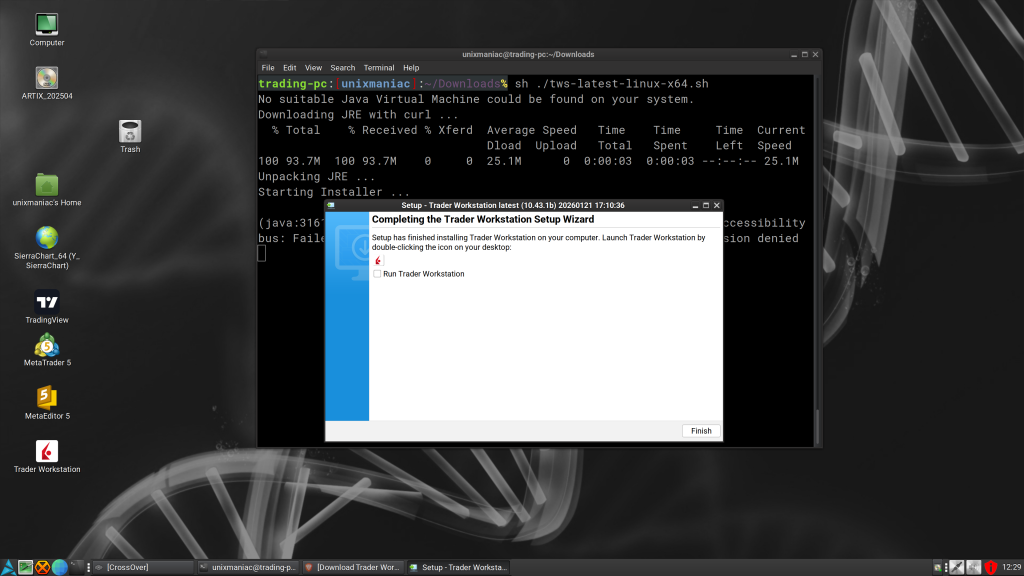
sh ./tws-latest-linux-x64.sh Follow the on-screen simple instructions and after the install is finished you will end-up with a desktop icon you can double click to start the platform.
Interactive Brokers provide also an extra desktop application called IBKR Desktop, make sure you download the TWS (Trader Workstation)
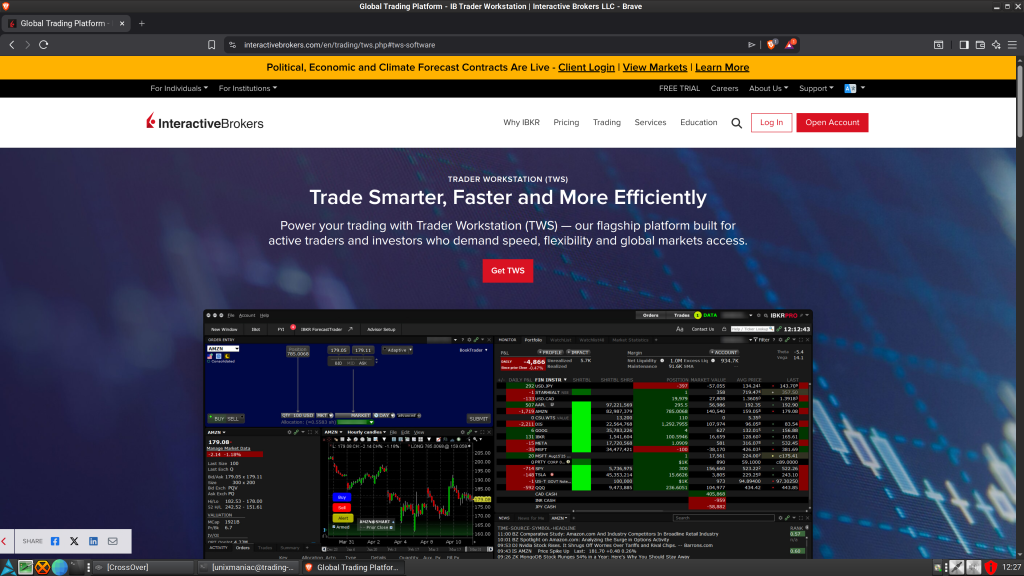
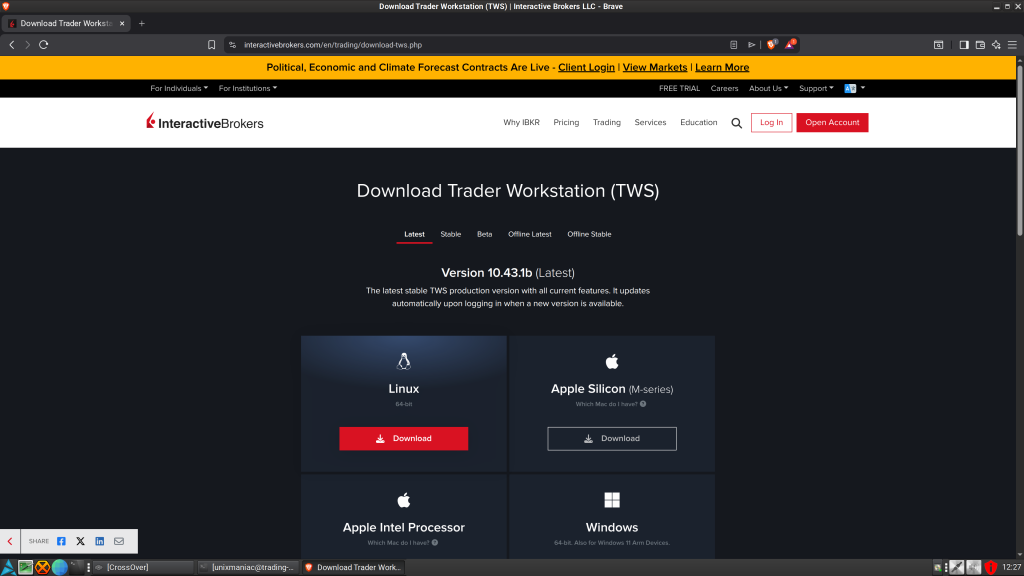
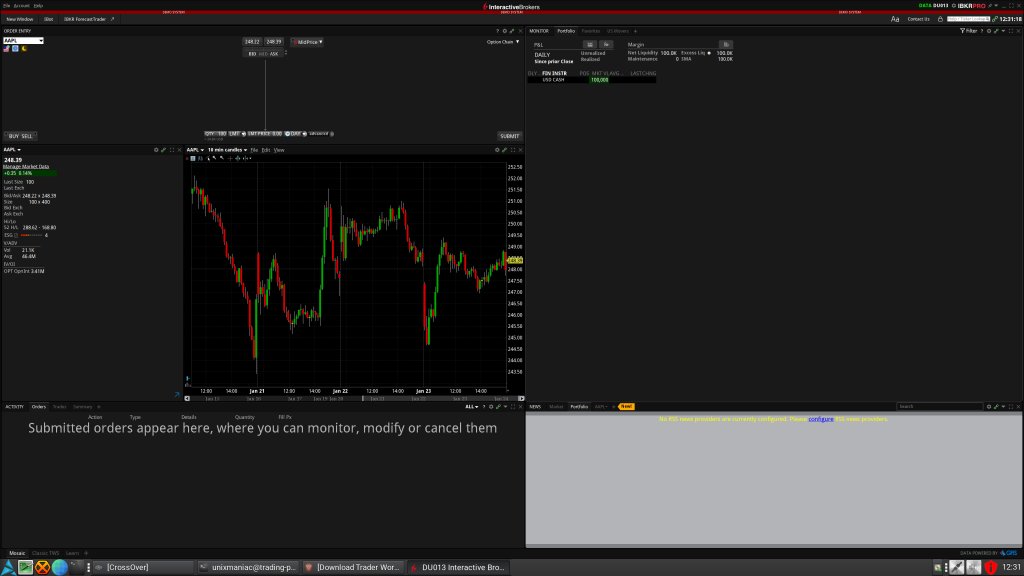
The HiDPI Scaling Fix: If you are on a high-resolution monitor, TWS looks incredibly small by default. Navigate to your TWS installation directory and find the file named tws.vmoptions. Open the file and add the following line
-Dsun.java2d.uiScale=2Save the file and restart TWS. This effectively doubles the UI scale, making the platform readable on modern 4K displays.
A Final Message
I decided to share this guide because I believe the future of retail trading in 2026 belongs to those who own their stack. While the industry pushes “Guru” solutions and expensive framework-heavy based platforms, I found that stability comes from simplicity. In my setup, every bit and every process serves a single purpose: Execution.
Can we trade while keeping our systems clean of proprietary operating systems that attempt to pollute our digital lives? In my experience, the answer is a definitive yes. This guide serves as proof that it is possible to trade while keeping our privacy and sovereign attitude intact.
I recognize that this guide is not universal and may not be entirely beginner-friendly, but if you want to get on-board of this quest there are tons of free content in the web that can match your expectations and your level.
If you have questions please drop a comment here or on the youtube video and I will try to help as much as I can.
Fuel the Stack
I write these guides the same way I would help a friend in real life: we sit down, have a coffee, and just build the thing.
If you enjoyed the session and want to buy the next round, you can do so here: