If you develop automated trading systems or specialized indicators using Sierra Chart programming , you are already familiar with the Advanced Custom Study Interface Language (ACSIL). Because ACSIL relies on native Sierra Chart C++, it offers unmatched execution speed. However, managing the build pipeline for sierra chart custom studies introduces massive operational friction.
If you are on a sovereign setup like running Sierra Chart on Linux via Wine, compiling custom code locally requires navigating complex include paths and environment overrides. If you are deploying onto a production Windows trading VPS, you often find yourself bogged down by massive IDE installations or inconsistent local build environments that are focused on native windows development.
A long time ago, I was tired of maintaining two separate development workflows, so I switched my trading to Linux. It was possible back then, and it’s even more optimal for trading on Linux in 2026.
But whether you are running a Linux trading machine or a standard Windows setup, you can compile your Sierra Chart indicators with a single command line without the need for messing around with remote builds or having to unload and load DLLs on your Sierra Chart installation.
Here is the technical breakdown of the problem, my solution, and how to deploy the tool.
ACSIL C++ Compilation Without Automation
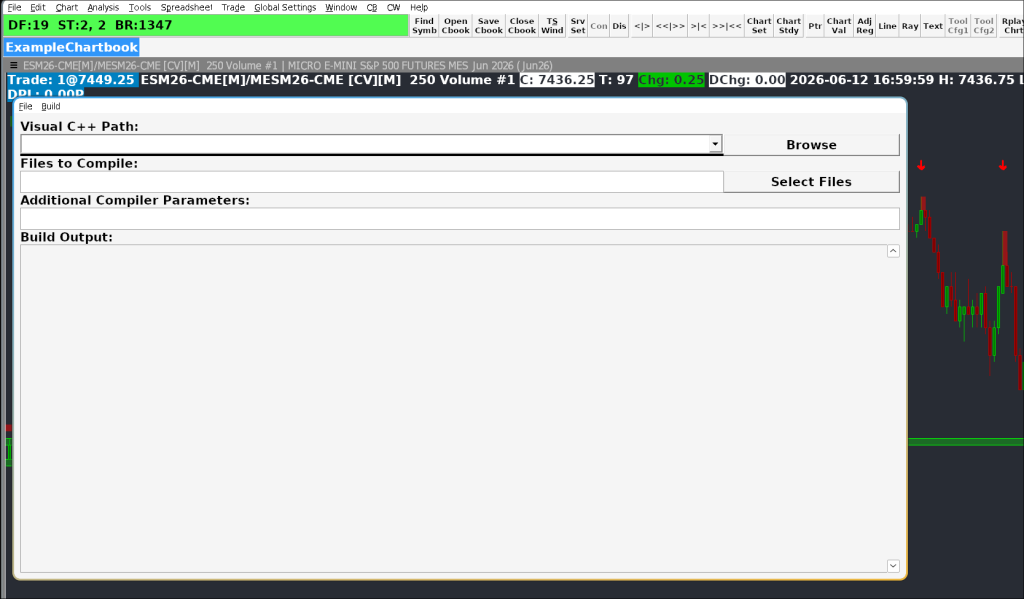
When building Sierra Chart custom studies, the platform by default allows you to use studies saved inside the /ACS_Source directory and enables you to build them either remotely or by using the locally provided batch file, which uses the Microsoft compiler.
This model breaks down quickly under a few specific scenarios:
- Running on Linux: Running your trading platform under an optimized Linux distribution, means your header files, Wine prefix directories and compiler flags live in an entirely different pathing architecture than standard windows environments. For example the platform expects file references using windows paths (e.g.,
C:\SierraChart\Data\MyStudy.dll), while your compiler and build tools run natively in Linux and see Linux paths (e.g.,/home/user/.wine/.../drive_c/SierraChart). - Rapid Development: Switching between your development IDE and Sierra Chart to compile and test a change creates a huge time waste and creates fatigue.
- Multiple Installations: If you have multiple instances/installations open you will have to do the same task multiple times.
The objective was clear: Build a simple, dependency-light tool that safely handles the compilation, ensures the resulting .dll files match Sierra Chart’s strict execution requirements, and loads them properly into the platform.
Automation With The Cross-Compiler Tool (sc_build_dll)
Back in 2019, I wrote a bash script to help with automation. My script stayed simple and clean and worked fine until recently, when I decided to update it and add more features that I had previously handled with other smaller scripts.
The tool I pushed to my self-hosted repository is coded in Rust and handles the underlying build pipeline automatically. It abstracts away the platform-specific compiler paths so that the identical script executes flawlessly across both operating systems.
The tool is designed to run as a single-command build step (e.g., sc_build_dll MyStudy.cpp). When executed, it runs the following pipeline:
- Loads Configuration: Reads environment profiles from a local
sc_build.tomlfile to find your Sierra Chart installation path and UDP port. - Compiles: Invokes the C++ compiler (
g++on Windows, orx86_64-w64-mingw32-g++on Linux) with the official recommended Sierra Chart compiler flags for stability and optimizations. - Unlocks the DLL: Sends a
RELEASE_DLLcommand to Sierra Chart via UDP to release the active lock. - Verifies Lock Release: Polls the target path in the Sierra Chart
Datadirectory, waiting until the file becomes writable. - Copies the Binary: Deploys the freshly built
MyStudy_64.dllbinary to theDatadirectory. - Reloads: Sends an
ALLOW_LOAD_DLLUDP command to trigger an immediate, live reload of the studies in Sierra Chart.

Core Features
- Zero IDE Overhead: No need for heavy Visual Studio installations to compile basic C++.
- Environment Agnostic: Automatically handles path resolution for local Linux directories (including Wine structures) and native Windows environments.
- Streamlined Pipeline: Reads your custom ACSIL
.cppfile, links the essential Sierra Chart headers, and spits out the optimized dll. - Multiple Profiles: Allow you to define and use multiple Sierra Chart installations via the config file.
Under the Hood Details
I moved away from a scripting approach like bash, perl or python and into a single binary that I could distribute among systems. I chose Rust over Go for this one as it felt a better fit for such a simple tool at the time.
Cross-Platform Path Handling
In Rust, handling directory paths across Windows and Linux can be tricky. sc_build_dll uses standard PathBuf joins to maintain cross-platform path compatibility.
On Linux, it dynamically extracts the Wine directory name to build the exact simulated Windows path structure that Sierra Chart’s UDP listener expects.
Smart Lock Polling
Instead of simple sleep timers which can fail if the system is slow, the tool attempts to open the target file in write-mode with a short timeout. It only proceeds with copying the new binary once the OS confirms the write lock is released.
Statically Linked Releases
To ensure that the utility remains zero-dependency and runs instantly, the build targets compile the Rust code statically (using x86_64-unknown-linux-musl for Linux and x86_64-pc-windows-gnu for Windows).
Setup & Usage
I have created a demonstration video on youtube, it covers a quick setup on Linux and Windows along with using the tool to build and update a very simple custom study.
Prerequisites
You need a C++ compiler installed and in your environment path:
- Linux:
x86_64-w64-mingw32-g++(available in Arch asmingw-w64-gccor Ubuntu asg++-mingw-w64-x86-64). - Windows:
g++(via Scoop, WinLibs, or MSYS2).
You will need Sierra Chart installed either natively on Windows or via Wine/CrossOver on Linux.
For Sierra Chart/Trading on Linux installation instructions, you can refer to the following:
Installation
There are two ways to install the tool, either fetch the pre-compiled binary (Linux or Windows), or build it from source.
You can find the latest release here: https://git.thelonestack.com/thelonestack/sc_build_dll_rust/releases
Using Binaries
For using the binary, its pretty straight-forward, just extract it into the directory you want and you are all set.
Building From source (Linux)
For building from source on Linux you will need:
- Rust & Cargo: The Rust compiler toolchain (installed via rustup.rs or a system package manager).
- GNU Make: Used to parse and run the
Makefilecommands. - System Linker/Build Tools: Cargo requires a system linker to produce the final executable.
- Debian/Ubuntu:
sudo apt install build-essential - Arch Linux:
sudo pacman -S base-devel
- Debian/Ubuntu:
Run the following in your terminal to grab the source:
git clone https://git.thelonestack.com/thelonestack/sc_build_dll_rust.gitEnter the directory and run:
make installBy default make install installs the binary under ~/.local/bin/ and places a copy of the config file under ~/.config/sc_build_dll/
Configuration
The tool will look for the configuration file sc_build.toml first in the current folder, and if not found, under ~/.config/sc_build_dll/sc_build.toml.
For Windows users, always keep the config file under your current directory.
Configuration is using TOML syntax.
The file is divided into named profiles. Each profile is defined using the [profiles.<name>] section header:
[profiles.dev]
# Configuration options for the 'dev' profile go here...

[profiles.real]
# Configuration options for the 'real' profile go here...
Profile Parameters
sc_dir (Required)
- Type: String
- Description: The absolute directory path to the root of your Sierra Chart installation. The tool uses this directory to locate the compiler include folder (
ACS_Source), deploy the compiled.dllto theDatasubdirectory, and verify file locks. - Formatting Rules:
- Linux: Use standard forward slashes. E.g.,
"/home/user/.wine/drive_c/SierraChart". - Windows: Windows uses backslashes (
\). Because double quotes (") in TOML treat backslashes as escape characters, you must format Windows paths in one of two ways:- Single Quotes (Recommended): Single quotes define a TOML literal string where backslashes do not need to be escaped:
sc_dir = 'C:\SierraChart' - Double Quotes: Double quotes require you to escape every backslash by doubling it:
sc_dir = "C:\\SierraChart"
- Single Quotes (Recommended): Single quotes define a TOML literal string where backslashes do not need to be escaped:
- Linux: Use standard forward slashes. E.g.,
udp_port (Required)
- Type: Integer
- Description: The network UDP port configured in Sierra Chart. The tool sends a
RELEASE_DLLpacket to this port before compilation to free the locked file, and anALLOW_LOAD_DLLpacket afterward to trigger the reload. - Sierra Chart Configuration: This must match the port specified in Sierra Chart under Global Settings → Sierra Chart Server Settings → General → UDP Port.
cxx_flags (Optional)
- Type: String
- Description: Additional compiler flags passed directly to the C++ compiler. To conform with Sierra Chart’s recommended release settings, the compiler needs
-O2(optimization),-s(symbol stripping), and-Wno-deprecated(warning suppression). - Behavior: These flags are applied during standard builds. In debug mode (via the
--debugflag), these flags are still processed, but any strip flags (-s) are filtered out and optimization levels are overridden by-O0to ensure debug symbols are preserved. - Examples:
-Wall -Wextra(enables detailed compiler warnings to debug code errors).-DDEBUG_LOGGING(defines a custom macro to compile logging blocks).-I/path/to/custom/headers(adds an extra search directory for header files).
Note: If omitted, the compiler defaults to standard release flags (-O2 -s -Wno-deprecated) to ensure the study compiles with standard optimization and warning settings.
Here is an example configuration file with comments
###
# Linux Profile Example:
###
# A profile named "dev" is defined
[profiles.dev]

# Define Sierra Chart installation directory
sc_dir = "/home/user/.cxoffice/SierraChart_DEV/drive_c/SierraChart"

# Extra arguments for the compiler
cxx_flags = "-DDEV_ENV -I /home/user/my_cpp_lib/include"

# Define Sierra Chart UDP Port for communication
udp_port = 8889

###
# Windows Profile Example:
###
# A profile named "win" is defined
[profiles.win]

# Define Sierra Chart installation directory
sc_dir = 'C:\SierraChart'

# Define Sierra Chart UDP Port for communication
udp_port = 8890
Usage and CLI Reference
sc_build_dll follows standard POSIX/GNU command-line conventions, placing configuration options first, followed by the positional source file, and concluding with a double-dash (--) for trailing compiler parameters.
Command-Line Syntax
sc_build_dll [OPTIONS] <source_file> [-- <extra_compiler_arguments>]Global Flags vs. Ad-Hoc Arguments
To keep your projects clean, the tool distinguishes between standardized compiler flags and project-specific overrides:
cxx_flags(insc_build.toml): Use this for standardized, environment-wide compiler settings that apply to all compilations under that profile (e.g., warning levels-Wall, default optimizations-O2, or global library include directories-I).<extra_compiler_arguments>(after--): Use this for ad-hoc, project-specific, or non-standard arguments that cannot be standardized globally (e.g., compiling a one-off secondary helper file likehelper.cppfor a single study, or linking a specific socket library like-lws2_32for a single network-dependent study).
Append Behavior: Any arguments you specify after the double-dash (--) are appended directly after the primary study filename in the constructed compiler command. This is critical for C++ compilation, as it allows you to list additional source files (e.g., helper.cpp) or trailing linker parameters immediately following the main entry source file.
Parameter Reference
| Argument / Flag | Shortcut | Description | Default |
|---|---|---|---|
[OPTIONS] | Various | Configuration flags modifying the behavior of the orchestrator tool (see below). | None |
<source_file> | None | The primary ACSIL C++ source file to compile (e.g., MyStudy.cpp). | Required |
-- | None | Separator indicating all subsequent arguments should bypass the tool and go directly to the compiler. | None |
Options Details:
--profile <name>(or-p <name>): Specifies the profile block to load fromsc_build.toml. Defaults todev.--debug(or-d): Compiles with debug symbols (-g), disables optimization (-O0), keeps frame pointers (-fno-omit-frame-pointer), and filters out strip flags (-s).--verbose(or-v): Prints the exact compiler command being executed by the orchestrator.--no-color: Disables color output and converts status emojis to plain text tags. (Also respects the systemNO_COLORenvironment variable).
Full Command Combination
Here is a full compilation command utilizing options, the positional source, and trailing ad-hoc arguments:
sc_build_dll --profile dev --debug --verbose MyStudy.cpp -- helper.cpp -lws2_32
Order of operations executed under the hood:
- Loads path variables from the
devprofile. - Prepares debug symbols, disables optimizations (
-O0), and enforces frame pointers. - Injects the ad-hoc source
helper.cppand links-lws2_32into the compiler command list. - Logs the complete raw compiler command to the console (due to
--verbose). - Releases the DLL file lock via UDP, deploys
MyStudy_64.dllto your Sierra Chart directory, and triggers a live reload.
Licensing & Git Repository
I distribute this utility as open-source software under the MIT License. Feel free to modify it, fork it, or adapt the compiler profiles to your own systematic setup as required.
The complete codebase, configurations, and documentation are hosted entirely on my own infrastructure. If you want to audit the execution logic, adjust the underlying path variables, or expand the build pipeline, target the deployment node below.
Get direct updates on the things that matter to you. Select the pillars you're interested in below, and let the transmissions find their way to your mailbox. Zero fluff. No algorithmic noise.
Clone the verified, zero-dependency production source directly to your local development environment:
git clone https://git.thelonestack.com/thelonestack/sc_build_dll_rust.git
Building custom tools and maintaining independent, self-hosted Git repositories takes direct time, hardware, and capital. If this script eliminates your ACSIL compilation friction and saves you hours of manual path troubleshooting, back the code directly. Buy me a coffee, fund some egg whites, or help offset the server hosting costs to keep this stack independent and entirely ad-free.
Buy Me a Coffee / Support My Work